Quick Start
1. Essential Prerequisites
Before you begin integrating with the LATAM Pass APIs, you must complete the following commercial and technical requirements.
1.1 Obtain Business Identifiers
To ensure your requests are processed correctly, you should already have the PartnerID and ProductID, which are sent to you by your commercial focal point.
The key identifiers you need are:
PartnerID: a unique identifier for your company (e.g:09989092000121orOHUTA). The same ID is used for both Sandbox and Production environments.ProductID: a specific identifier used to track accumulation transactions.
How can I get the partnerID and productID? Your commercial focal point should send them to you. You can contact them to obtain these identifiers if it has not been sent yet.
What should I do if I didn't receive it? Please contact our support team in case you were not able to contact your focal point.
1.2 Authentication Setup (Auth)
Our APIs utilize the OAuth 2.0 standard. To interact with any endpoint, you must include a valid access_token in your request headers.
Follow these steps to set up your access:
Step 1- Register Your App: Navigate to Dev Tools > Register App section to create your application profile.
Step 2- Select the API: Select which API you want to use, always checking the OAuth option.
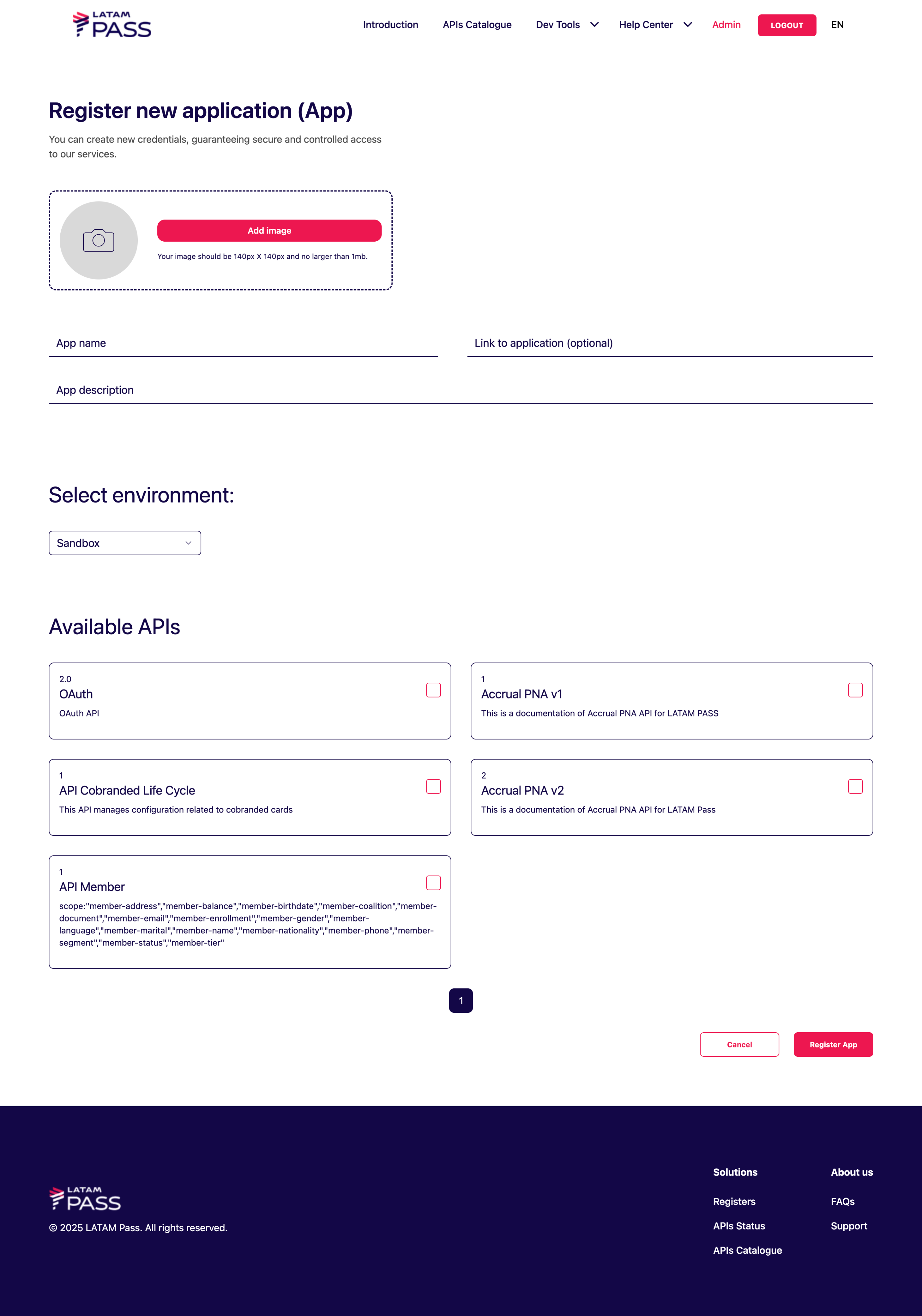
Once you have registered the application by selecting the desired APIs from Dev Tools, you will be able to access the list of your registered apps.
By clicking on the "Details" and "Authorization" buttons, you will be able to access your authorization code.
With that authorization code, you can use our access-token API to generate your token and use it in the other APIs.
Without the access token, you will not be able to use them.
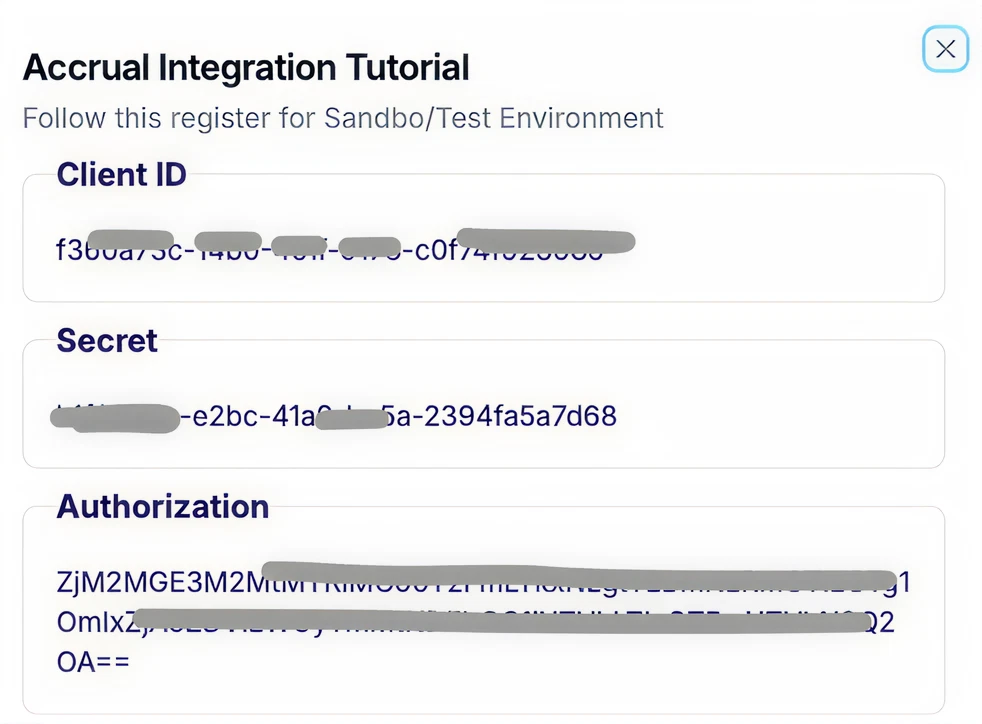
Step 3- Retrieve Your Credentials: Once the app is approved, go to Dev Tools > My Apps, select your newly created app, and click "See details" to access:
| Field | Description |
|---|---|
client_id | Your unique application identifier |
client_secret | Your application secret (keep this secure) |
Authorization | Token for API authentication — use as "Basic" |
2. Obtain Authentication
Build Your POST Request to get the access-token parameter.
2.1 Prepare Your Authentication Request
Use this curl to get the POST method and fill the missing parameters.
Remember: this is an example of how it should look. Please replace the client_id and authorization fields with the values you obtained from the previous section
2.2 Configure Request Headers
Once you get client_id and authorization code as described in the Essential Prerequisites section, set the following headers in your request:
Important Required Fields
| Header | Value | Description | How it is obtained |
|---|---|---|---|
Content-Type | application/x-www-form-urlencoded | The partner's unique identifier obtained as first step for the integration | Will be sent to you by the commercial team |
client_id | <<your_client_id>> | Your identifier to be authenticated for the API | Follow these steps to obtain it |
authorization | Basic <<your_authorization_code>> | Your password to be authenticated for the API | Follow these steps to obtain it |
Once you send the request with the headers and body suggested correctly, you will receive a status 201 and this response:
Now you can use this access_token in the next requests
3. Build your POST
Build Your POST Request with your partner parameters and credentials
3.1 Use our APIs
If you want to use the Accrual PNA v2 API, use this curl command and replace the incomplete attributes with your partner credentials, authentication codes, and other body parameters, which you should already have if you read the previous sections.
In this example case, we will use the accrual request to submit an accrual application.
More information about the fields in this sample API request:
| Field | Type | Description | How it is obtained |
|---|---|---|---|
partnerId (or Partner Code) | String | The partner's unique identifier obtained as first step for the integration | Will be sent to you by the commercial team |
productId (or Product Code) | String | Identifier of the product or service generating the accrual (AKA accrualId) | Will be sent to you by the commercial team |
client_secret | UUID | Your password to be authenticated for the API | Follow these steps to obtain it |
Authorization | Basic Encoded Base64 | Your token to be authorized to access each API resource | Follow these steps to obtain it |
client_id | UUID | Your identifier to be authenticated for the API | Follow these steps to obtain it |
partnerAccrualId | String | Unique accrual ID in the partner's system (for idempotency) | Generated by your service. Make sure this is generated as unique identifier |
partnerTransactionId | String | The commercial transaction ID in the partner's system. | Generated by your service. Make sure this is generated as unique identifier |
partnerOriginalDateTime | String (date time) | Original transaction date and time. Format: yyyy-MM-dd'T'HH:mm:ss.SSSXXX. | Generated by your service. Make sure this is generated at the time your service are executing the accrual transaction |
4. Handle the Accrual Response
Handle accepted status and possible errors from the example step 3
4.1 Status and Meanings
If you receive a 200 OK response, it means your request was successfully accepted for processing.
- Parse the
AccrualResponseV2body and store thecorrelationId. This is your primary key for tracking the transaction. - If you receive a
4xxor5xxerror, log the response body for debugging. - Do not retry
4xxerrors without correcting the request.
4.2 Verify the Final Transaction Status
If your transaction was generated correctly (receive a 200 OK response), you can verify the transaction status with 2 methods: automatic webhook and manually.
Option 1: Receive Notifications (Webhook) – Recommended
Action: Configure an endpoint (URL) in your system that can receive POST notifications. When the transaction status changes, the Accrual API will send you a notification with the correlationId and the final status.
Process: Your system must be listening at that URL to receive the notification and update the transaction status in your records.
More info about webhook here
We strongly recommend using this option that involves webhooks. This mechanism is more efficient and scalable, as it eliminates the need for repetitive queries (polling). Your system is notified in real time only when a change occurs, reducing network load and latency for both your system and the API.If you need to use the GET query method, it is essential to implement a polling mechanism with exponential backoff. This means gradually increasing the wait time between each retry to avoid overloading the API.
Option 2: Query the Endpoint (Polling)
- Action: Make periodic GET calls to the query endpoint using the correlationId received in step 4.
URL:
curl 'https://api.latampass.com/sandbox/v2/customer/loyalty/partner/accrual?partnerIdentifier=<your partner ID>&correlationId=<your generated correlation ID>' \
  --header 'x-Latam-Test: LatamPass' \
  --header 'client_id: <Your client id>' \
  --header 'Access_token: <your access token>'
End Condition: Stop polling when the status field in the response is PROCESSED or CANCELLED
4.3 Issues and Solutions
| Issue | Cause | Solution |
|---|---|---|
401 Unauthorized | Invalid or expired token | Generate new access token |
404 Not Found | Wrong endpoint URL | Verify sandbox URL is use |
400 Bad Request | Missing required fields | Check request payload |
Test data not working | Using production data | Use test-specific data |
5. Integration Checklist
Check here if you completed all the steps necessary
5.1 Accrual API Integration Checklist
✅ Authentication: Am I including the authentication token (access_token) in the Authorization header of all my requests?
✅ Member Identification: Am I sending the FFN or a complete document object (documentId, documentType, issueCountryCode) to identify the member in each accrual request?
✅ Partner Identifiers: Am I generating and sending the three required unique identifiers in the partner object?
productId
partnerAccrualId
partnerTransactionId
✅ Idempotency: To avoid duplicates, am I using the partnerAccrualId consistently for the same transaction? If I resend a transaction due to a network failure, do I use the same partnerAccrualId?
✅ Response Handling:
- Does my logic correctly interpret a
200 OK/204 No Contentresponse as a successful acceptance of the request? - Can my logic handle a
4xxresponse (e.g.,400 Bad Request) and log thecorrelationIdand error message for debugging?
✅ correlationId Logging: Am I storing the correlationId returned in the success response?
If you have successfully completed these steps, congratulations: you are ready to production.Follow our Production Access Guide for more information.
6. Production Access Guide
Make sure you completed all items to check your production readiness
Before requesting production access, ensure:
- ✅ All internal tests completed successfully in Sandbox
- ✅ No technical issues between partner and LATAM Pass
- ✅ Integration approved by LATAM Pass team
- ✅ Security requirements validated
6.1 Production Readiness Steps
1. Complete Integration in Sandbox
Successfully complete all test scenarios in the Sandbox environment
2. Request Production Approval
In order for the integration to be approved, LATAM Pass must:
- Ensure services and rules are properly configured in your test APP
- Request evidence of transactions carried out in the test environment
3. Receive Production Credentials
Once approved, you will receive:
- Production
client_id - Production
client_secret - Production access instructions
6.2 Environments: Sandbox vs. Production
| Feature | Sandbox Environment | Production Environment |
|---|---|---|
| Setup | Please follow the steps from this link | Please follow the steps from this link |
| URL | https://api.latampass.com/sandbox/ | https://api.latampass.com |
| Data | Test data only. Transactions do not affect real member accounts. | Live commercial use. |
| Purpose | Development, integration testing, and certification. | Your token to be authorized to access each API resource |
x-latam-test Header | Active. Can be used to trigger specific mock scenarios. | Ignored. This header has no effect in the Production environment. |
| Support | Support available during business hours for integration issues. | 24/7 support for critical production issues. |
| Credentials | Separate set of credentials and tokens provided for testing | Unique, secure credentials for live operations. |
6.3 How to Request Access
1. Access Requirements
- Access via Dev Tools > Register App functionality
- Wait for team approval (not automatic like Sandbox)
- Receive confirmation e-mail from the team
2. Assisted Production Process
- Open a ticket at the Support Center requesting assisted production
- Support team will define how evidence must be generated
- Evidence will be shared with the team
3. Security Requirements
- Production APP will remain in "Pending" status until approved
- Team will contact you for alignment and corrections
- Production APP will be automatically disabled for security reasons
6.4 Production Endpoints
| Method | Endpoint | Description |
|---|---|---|
| POST | https://api.latampass.com/oauth/access-token | OAuth token generation |
| POST | https://api.latampass.com/v1/customer/loyalty/partner/member/search-member | Member search |
| POST | https://api.latampass.com/v2/customer/loyalty/partner/accrual | Points accrual |
| GET | https://api.latampass.com/v2/customer/loyalty/partner/accrual?correlationId={id} | Accrual status |
| POST | https://api.latampass.com/v1/customer/loyalty/partner/cobranded | Cobranded operations |
| DELETE | https://api.latampass.com/v1/customer/loyalty/partner/cobranded | Cobranded cancellation |
6.5 Common Production Issues and Solutions
| Issue | Cause | Solution |
|---|---|---|
| APP in "Pending" status | Awaiting approval | Contact support team |
| Integration rejected | Missing evidence | Provide test evidence |
| Sudden access loss | Security disable | Contact support immediately |
| Rate limit exceeded | Too many requests | Implement throttling |